

Microsoft Excel has been a staple for my work in office environments, even after changing industries. I have needed Excel for multiple reasons, first in childcare management and now in my current role in a public relations firm. Excel is an essential tool for creating quality, data-related work, and I have found that even though I have Excel experience, my PR work has utilized functions in Excel that I had rarely used. This is because my past work managing our data would need a particular approach using similar data sets. But in PR, each client we work with has different quantifiable goals, meaning that we need our spreadsheets to be flexible but accurate.
Below are a few tips for beginners and important reminders for daily users to keep in mind:
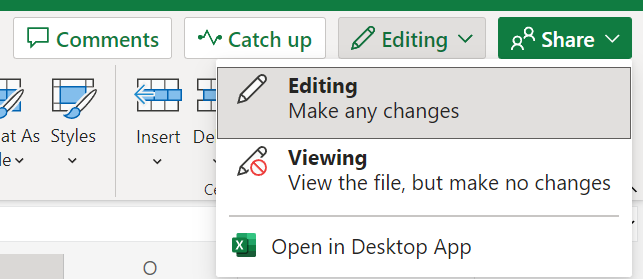
- Know the limitations of the version of Excel you are using – For this tip, I am referring to working in Excel workbook in a web browser versus the desktop application. The biggest reason this tip is on the list is that many clients we work for, including Communiqué, are remote. Excel for the web is a fantastic tool, especially in the remote workplace, but it can have limitations compared to the desktop version. Even certain functions can behave differently in a browser window than in Excel. When working on a shared Excel, I recommend selecting the ‘Open in Desktop App’ option in review. The updates will be made to the shared workbook, but you will have the full capabilities of Excel. Microsoft has a complete list of differences on its website; click here to learn more.
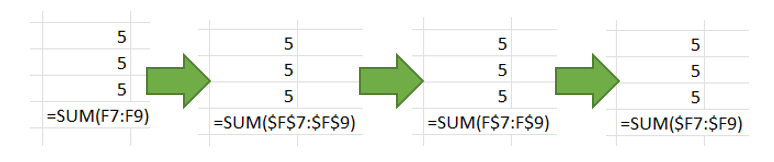
- Know when to use absolute vs. relative formulas – The most common formulas used in excel use relative cell references. These are basic cell references that adjust when copied or when using AutoFill. This is great to use in your spreadsheets but can create issues when you need the formula or a part of it to remain unchanged after copying. Using the ‘$’ symbol can let Excel know to keep the column or row reference as is, even when it is copied to another location on the spreadsheet. For example, to change the relative formula (=A8+B8) into an absolute formula where both the column and row are to remain unchanged would look like this: (=$A$8+$B$8). Like other Microsoft applications, Excel has many shortcuts to help users speed up their output when creating and updating spreadsheets. For formulas, you can use the F4 key after entering a cell reference to toggle the various absolute versions of that cell, then back to relative after all options have been cycled through. As the user continues to press F4, the formula will cycle from both column and row being absolute, to just the row, to just the column, then back to the initial written relative formula. Please note that pressing F4 changes only the cell reference directly to the left of your insertion point unless the formula is highlighted.
- Make the most of your tables – Depending on what type of work is being done with Excel, tables may not be an often-used tool because of how powerful a basic spreadsheet can be. However, Excel Data Tables offer valuable benefits. They assist with adding more rows and columns without needing to update references for formulas, formatting, filter settings and other items. By default, tables come with their own set of filters, which can be done without a table, but Excel allows only one set of filters per spreadsheet. Creating more than one table can allow the user the option to sort by each table, giving more flexibility in filtering the data.

The Table Design tab is where tables can shine in terms of ease and accessibility. The table formatting and design can be quickly changed as well as a few other options with a single click. This includes duplicate data removal, converting to a range or pivot table, and more.
Microsoft Excel is an incredibly valuable tool for even things like a simple checklist because it can help us better understand our data and help us stay organized. If you use Excel in any capacity, I highly recommend learning more about the program to help make it work better for your PR needs. Even if you have been using Excel since its debut in 1985, the program is constantly updating and improving, so there is always more to learn.